

 We typically respond the same day

HubSpot theme is a collection of styles and templates that can easily be edited and customized to create awesome web pages and blogs. Creating similar settings in each template of the HubSpot theme is both time-consuming and irritating. Are you also going through similar situations? Well! That’s where global content comes into play.
By updating Global content in the HubSpot theme, you can repeat a section of content in each template included in your theme. For example, you can add the same header and footer in your entirety website by updating the Global Setting.
If you landed on this article, you might be looking for the steps to update global settings in the HubSpot theme. Now, without any further discussions, let’s dive into the steps to update the global setting in HubSpot Theme.
Steps to update Global Setting in HubSpot Theme
Note– Before you get started, make sure you have permission to edit global content. Because only Super Admins can create and update the global content from the design manager and page editor.
Now, let’s begin
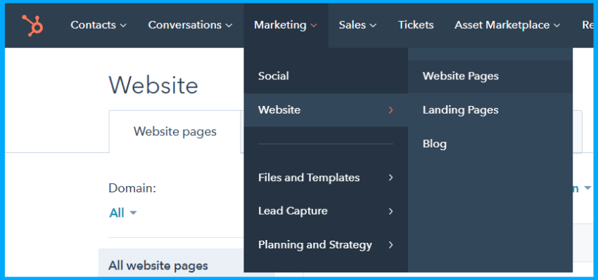
Step-1 Login to the HubSpot account and navigate to Marketing > Website > Website page, Landing Page, or blog.
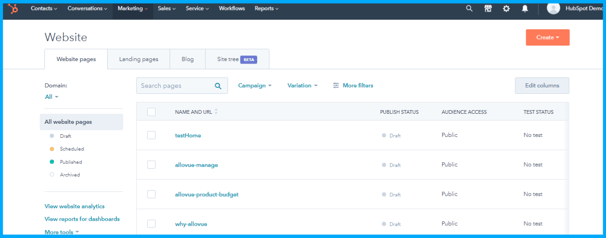
Step-2 You will be redirected to the page added below:
Step-3 Now, it’s time to select a theme. If you want to download a new theme, you can simply visit Asset marketplace and download both free and paid themes. For now, I am choosing the Clear theme of HubSpot.
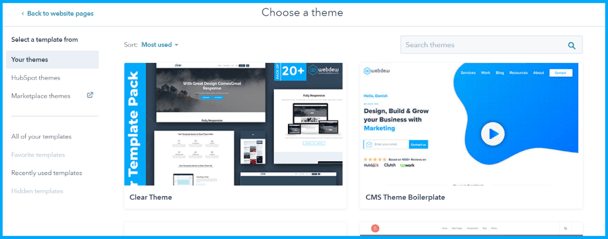
Step-4 Now, you will see all the templates included in the theme. Just select one template and click on the create button added on the page’s top right corner.
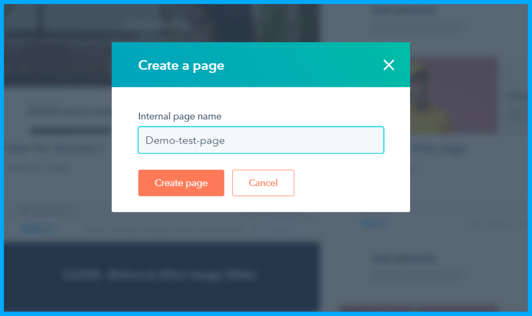
Step-5 Give an internal page name for the chosen template.
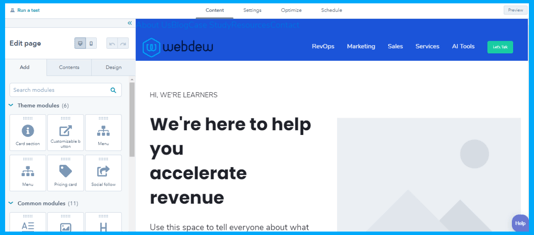
Step-6 Now, you will be redirected to the template where you can update the Global settings. The screenshot is added below:
Now, you need to pay some attention.
There are basically three Global settings that you can update in the HubSpot theme, including Header, Footer, and Edit theme settings. Let’s discuss each section one by one.
Header Global Setting
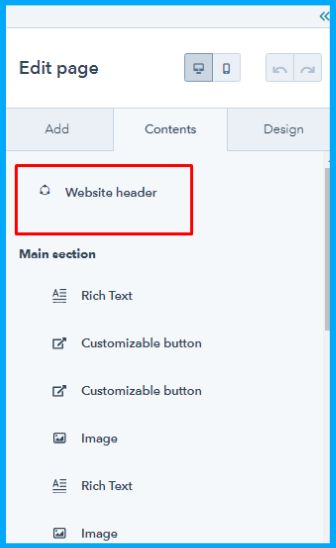
Step-7 Navigate to the left side of the page and click on the contents tab> Website header.
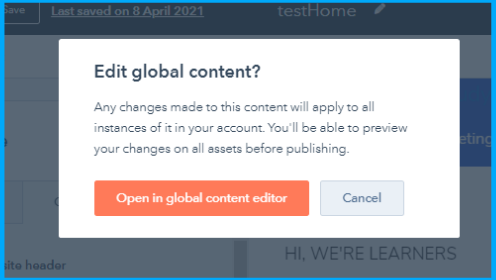
Step-8 Now select the “Open in global content editor” option and proceed further.
Step-9 Now, you can add theme modules, common modules, etc. as per your requirements like card section, customizable button, menu, pricing card, etc.
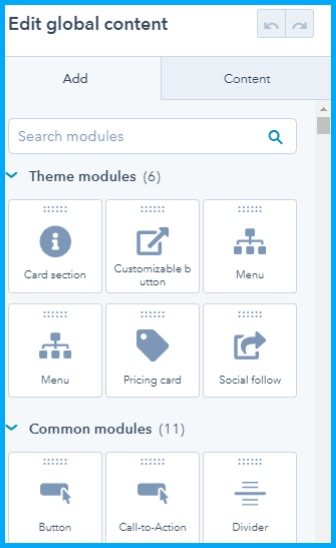 Moreover, you can also update Top header and Bottom header content including, Menu, Logo, Search, Primary navigation, etc., as per your requirements.
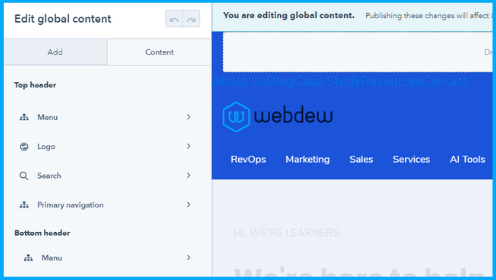
Step-10 Once you made the changes, don’t miss clicking on Apply changes. If not done, then changes will not reflect on your page.
Footer Global Setting
Step-11 Navigate to the left side of the page and click on the contents tab> Footer.
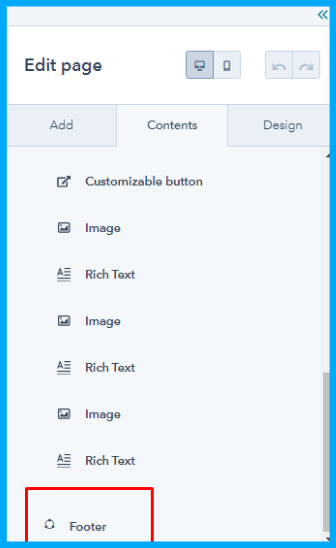 Step-12 Select the “Open in global content editor” option.
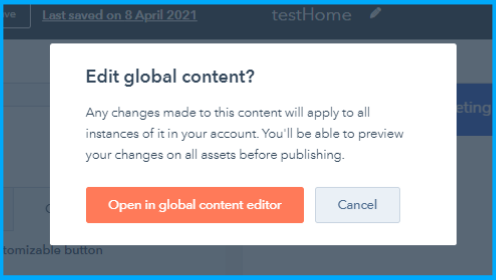
Step-13 Now, you can edit global content by adding different modules like Theme modules, common modules, etc.
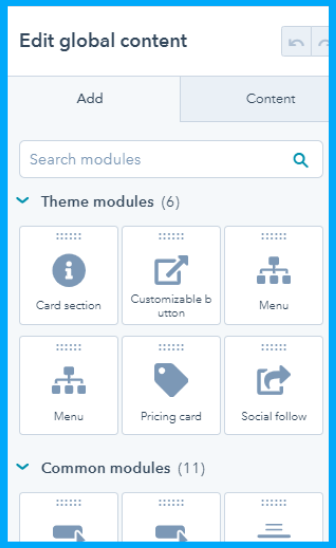
When it comes to Footer’s content section, you can update Social follow, Rich text, etc., that you want to see in the Footer of your entire website.
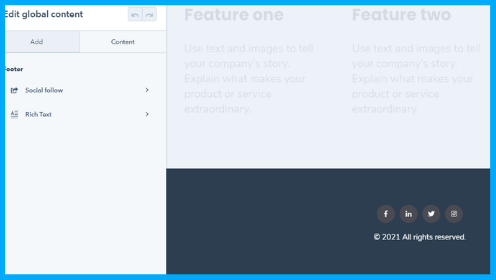
Step-14 After updating all the sections, click on the publish button added on the page’s top right corner. All the changes you made in the specific template will reflect on all the website page footers.
Edit Theme Settings
Now, let’s talk about edit theme settings.
Step-15 To edit your theme settings, you need to be within the page editor. You can access the page editor by clicking the Design tab given on the left side of the theme template. Then click Edit theme settings.
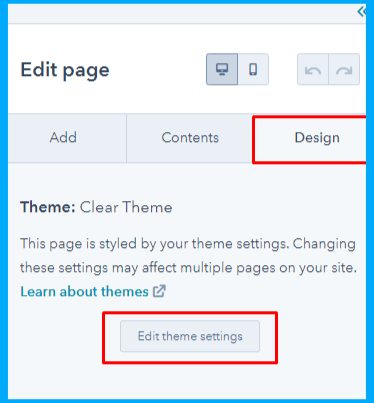
Step-16 You will redirect to the page added below:
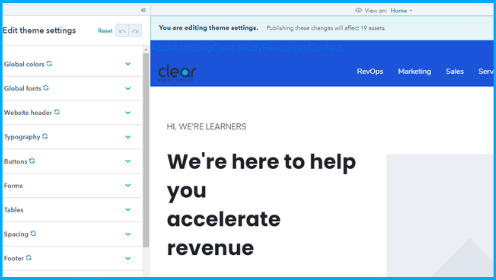
Step-17 Now, you can update Global colors, Global fonts, Website header, Typography, Buttons, Forms, Tables, Spacing, And footer.
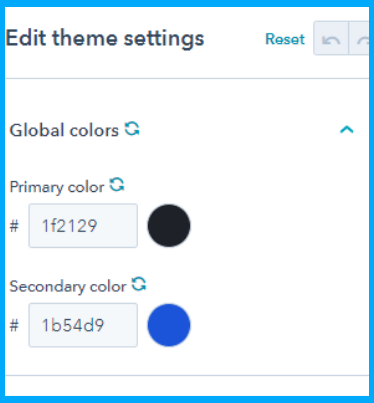
In the Global Colors setting, you can select a primary, secondary, and brand color for all elements included in your theme. All the colors you will select will be applied globally to all elements on your website.
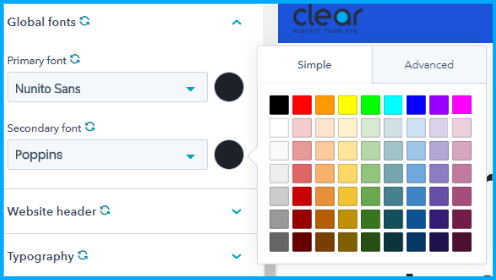
In the Global Font Settings, you can select a primary and secondary font that will further be applied to the website’s headings, forms, buttons, and body text. Just click on Click the color bubble and select your favorite color. Moreover, you can also choose a color value or click the Advanced tab to select a specific hexadecimal value with a color picker.
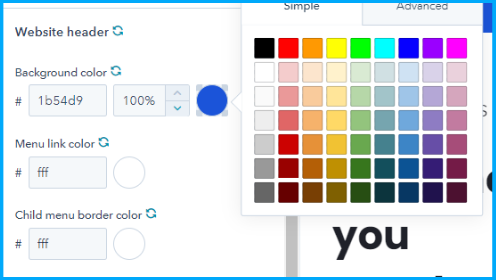
You can update the background colors, menu link color, and child menu border color in website header settings. The best part is you can enable or disable the top header as per your needs.
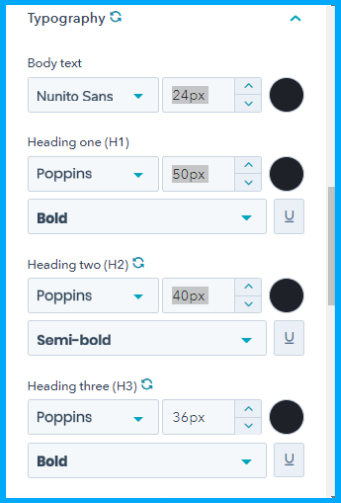
In Typography Setting, you can edit the fonts and choose custom colors for specific headings, body texts, and link color in your entire theme.
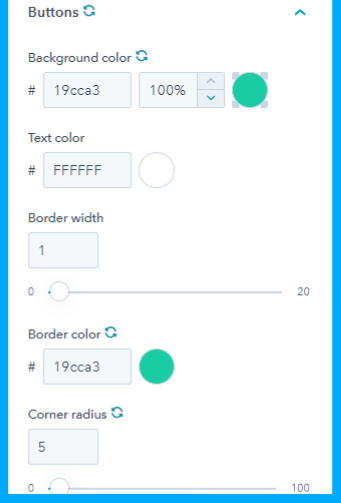
In Button settings, you can design your button style by selecting custom colors for background, text, hover text, border width, border color, corner radius, horizontal padding, and vertical padding.
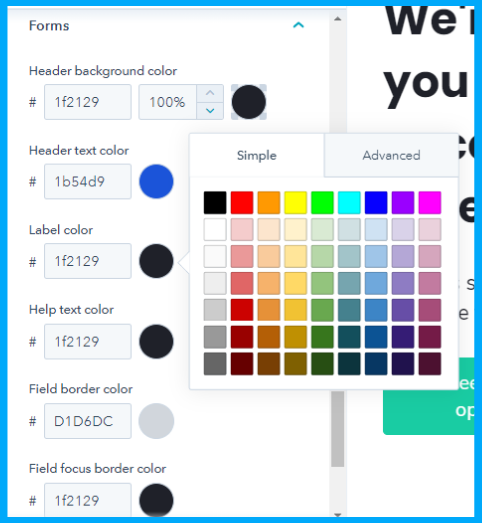
In Form settings, you can update header background color, header text color, label color, help text color, field border, and field focus border colour for your entire theme. You just need to click on the color bubble to select the color as per your needs.
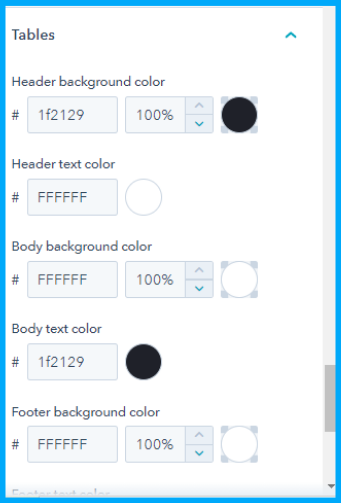
In Tables settings, you can customize default colors, text, border color, etc., by changing its color and font.
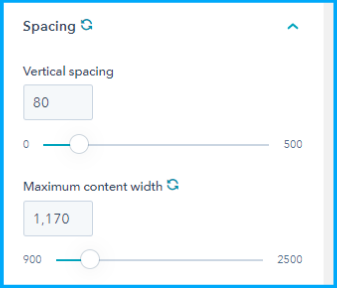
In Spacing Settings, you can set vertical spacing, maximum content width, and other elements that you want to see on all the pages of your website.
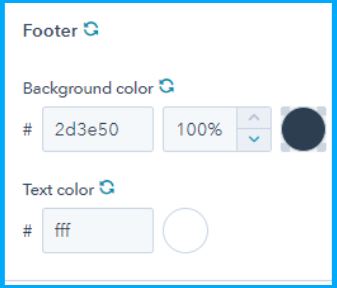
In Footer settings, you can easily customize the background color and text color with a single click.
Step-18 Once you made all the changes, click on the Publish button to reflect all the changes to your content.

The Final Verdict
Setting Global module setting is one of the most daunting tasks, but nothing is easier than that if done in the right way. Hopefully, all the steps added above will help you make global settings and edit existing theme template in HubSpot in the entire HubSpot theme like a pro.
So, what are you waiting for?
Roll up your sleeves and get ready to create a consistent and awesome website in a few clicks.
But, still, if you want any additional suggestions from HubSpot professionals, feel free to Contact Us.
Editor: Divya Verma
Dive Into our
Client Testimonials
Listen to business owners like you share how we’ve helped them grow. Your story could be next!





.svg)

“Recently we reached out to Webdew for a website inside of HubSpot and they also did some mocking automation for us.”

“Webdew team was quite honest and quite easy to work with in terms of taking feedback implementing it, showing that it doesn’t happen again and things like making sure that it meets our expectations.”

“We worked with webdew to help us build our HubSpot website and they did an amazing job with it. They were very quick.”

“webdew has helped us optimize the sales and marketing processes, and this is automating a lot of processes.”

“Hi everyone my name is Kara and I work as a channel consultant at HubSpot Singapore. I’ve been working closely with webdew agency”

“Hi my name is Christian from OpenDoors Mortgage team and I’m in the mortgage business and just trying to work on new projects and kind of incorporating HubSpot for my operations”

“I’m one of the technology directors for Travelopia. We are the largest experiential travel company in the world. We’ve engaged webdew recently, not recently, it’s been about a couple of quarters now.”
“We worked with Chehak over the past several months to create a series of animated videos for an academic planner that we produce. And from the very beginning, she was absolutely professional and a pleasure to work with.”


6x
We helped clients multiply their website conversion rates through strategic design and UX optimization.
20%
Our marketing campaigns led to a 20% uplift in customer engagement across digital channels.
2K+
Delivered over 2,000 qualified leads through targeted funnels and smart automation.
120+
Our video content has earned 120,000+ views, driving brand awareness and audience retention.
“I recently had the pleasure of working with Chehak on a video demo project, and I was thoroughly impressed with her services.”
.svg)

Additional Resources
Access expert tips, trends, and strategies designed for small businesses. Stay ahead of the curve and make informed decisions with our comprehensive resources!